
Filtering & Views
Show Me
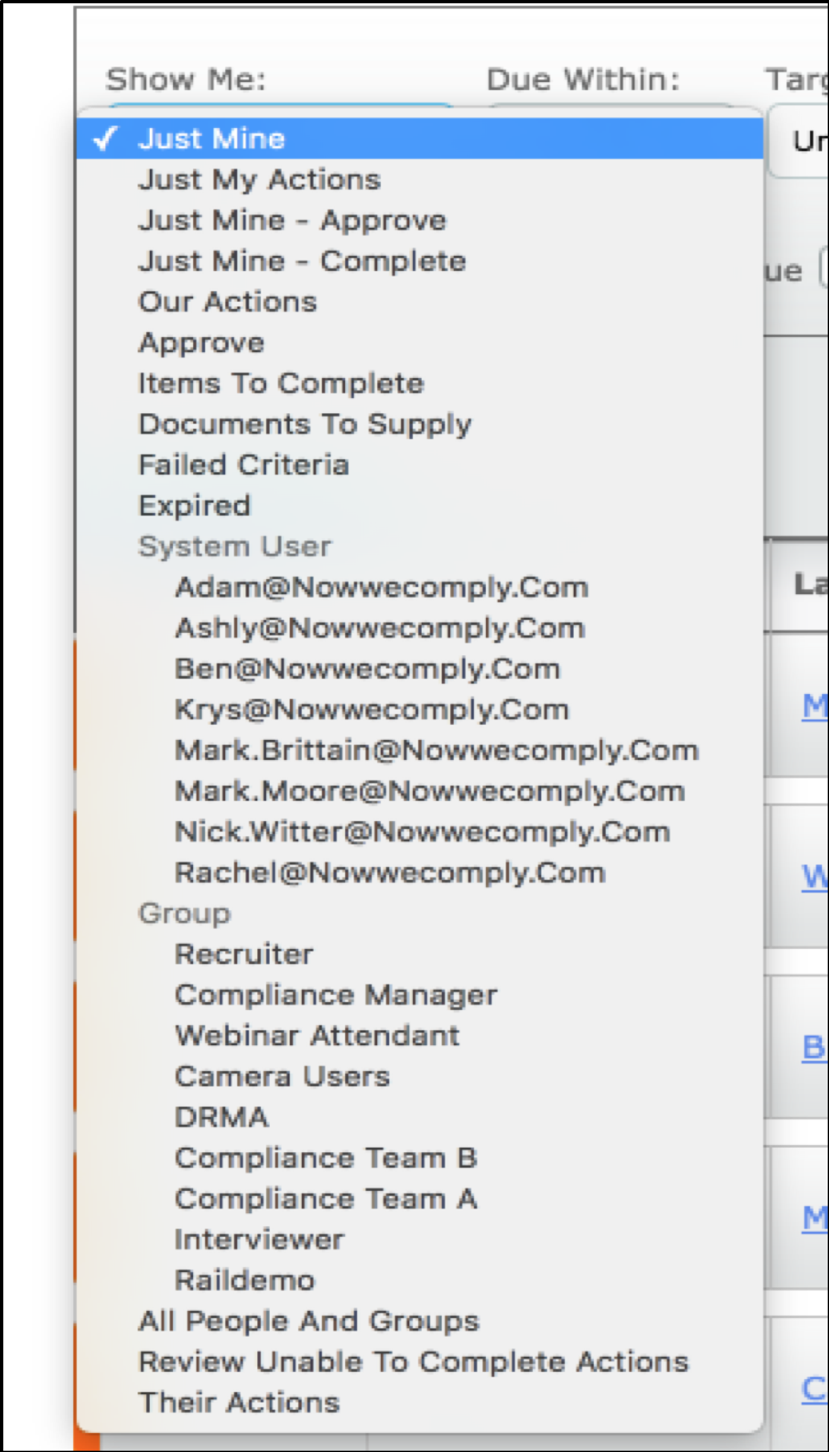
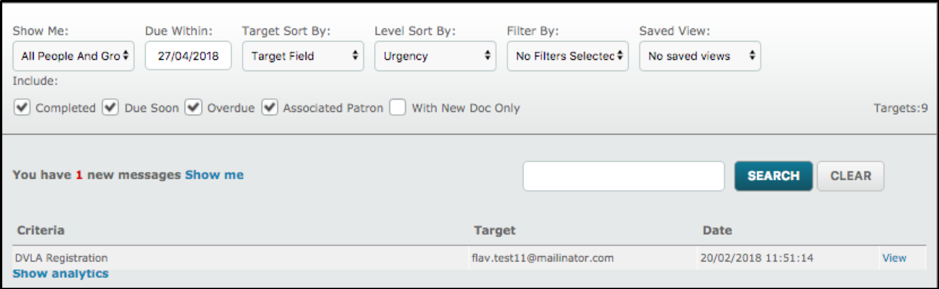
Select what content should be displayed on the Dashboard. This is useful for managing a varied workload. The Show Me drop down lets a system user quickly sort through data based on the state or the owner of the data.
If DRAA2, UK Criminal Records Check or Referrals is installed (from the Store), there will be additional options listed under their own sub-heading.
Just Mine: Select to display targets for which I am the patron.
Just My Actions: Select to display targets for which I am the patron and that require an action on a criteria(s), by me eg Complete, Review, Supply, Approve.
Just Mine - Approve: Select to display targets for which I am the patron that require approvals on criteria, only.
Just Mine - Complete: Select to display targets for which I am the patron that require criteria to be completed, only.
Our Actions: Select to display all targets of all users I am viewing in "People and Groups" that have an outstanding action for a criteria that is 'Ours'.
Approve: Select to display all targets of all users I am viewing in "People and Groups" that require an approval on a criteria.
Items To Complete: Select to display all targets of all users I am viewing in "People and Groups" that require a criteria to be completed by a System User.
Documents To Supply: Select to display all targets of all users I am viewing in "People and Groups" that require a System User to supply the document for a Document Supplier criteria.
Failed Criteria: Select to display all targets of all users I am viewing in "People and Groups" that have failed a criteria.
Expired: Select to display all targets of all users I am viewing in "People and Groups" that have a criteria with an out of date expiry ie a date in the past.
By System User: Select to display all targets for a specific System User only, when they are either the patron or associated patron. NB Only the users I am viewing in "People and Groups" will be listed.
By Group: Select to display all targets for a specific System Role only, when the users with this role are either the patron or associated patron. NB Only the roles I am viewing in "People and Groups" will be listed.
All People and Groups: Select to display all targets from all System Users and System Roles which I am viewing in "All People and Groups".
Review Unable to Complete Actions: Select to display all targets of all users I am viewing in "People and Groups" that require a criteria to be reviewed. These are criteria where the target has used the "I am unable to complete this" option.
Their Actions: Select to display all targets of all users I am viewing in "People and Groups" that have criteria to be completed by Targets only.
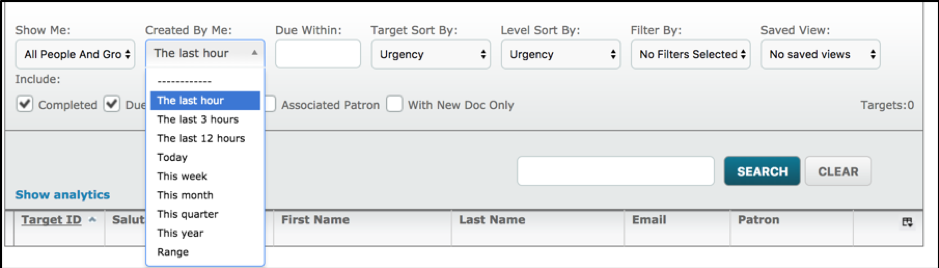
Created By Me:
The created by me filter, filters the records in the chosen target group, depending of if the user has created them.
The options are to filter on are as follows: The last hour, The last 3 hours, The last 12 hours, Today, This week, This month, This quarter, This year and Range which allows the users to specify the date from and date to.
Due Within
Filter by date, either use one of the pre-set options (Today, Week, 2 Weeks etc.) or use the Date Picker tool if a specific date is required. Alternatively, a date can be entered straight into the date field.
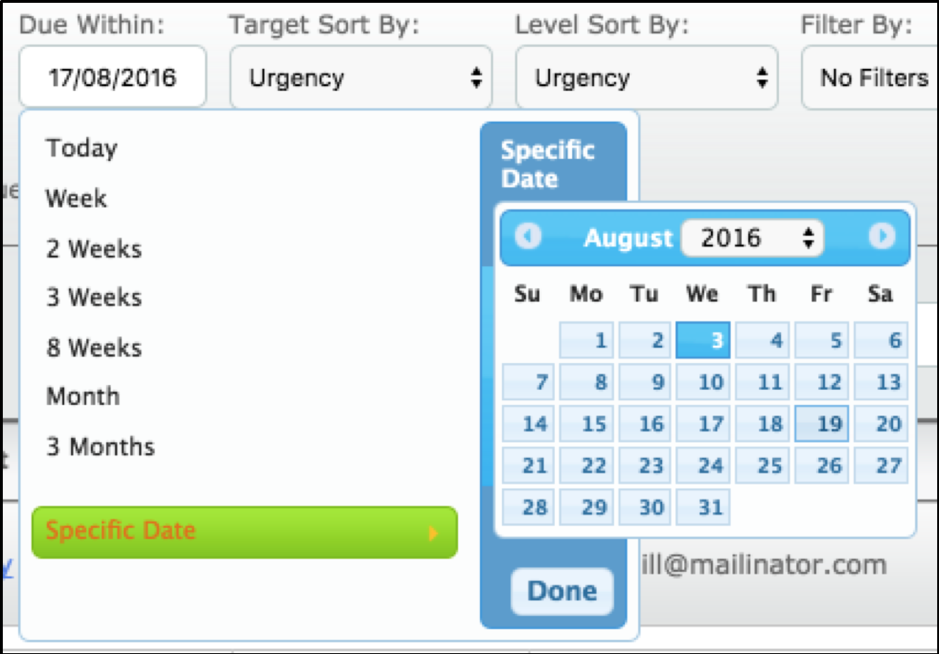
The option to change the Due Within date range will only be available if the role permissions allow that it can be overridden.

Target Sort By & Level Sort By
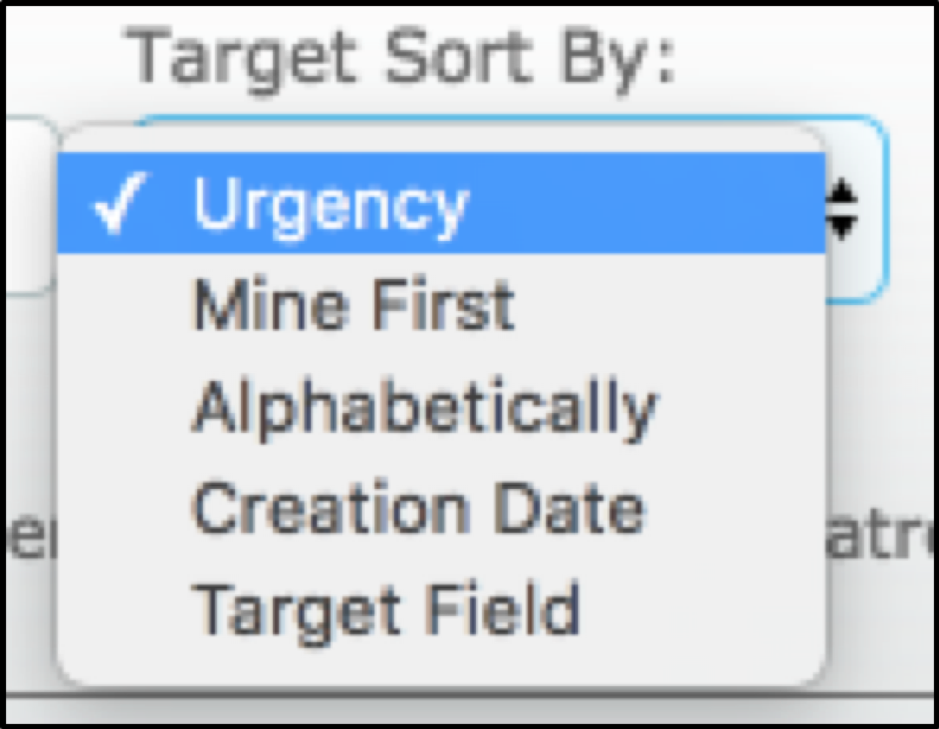
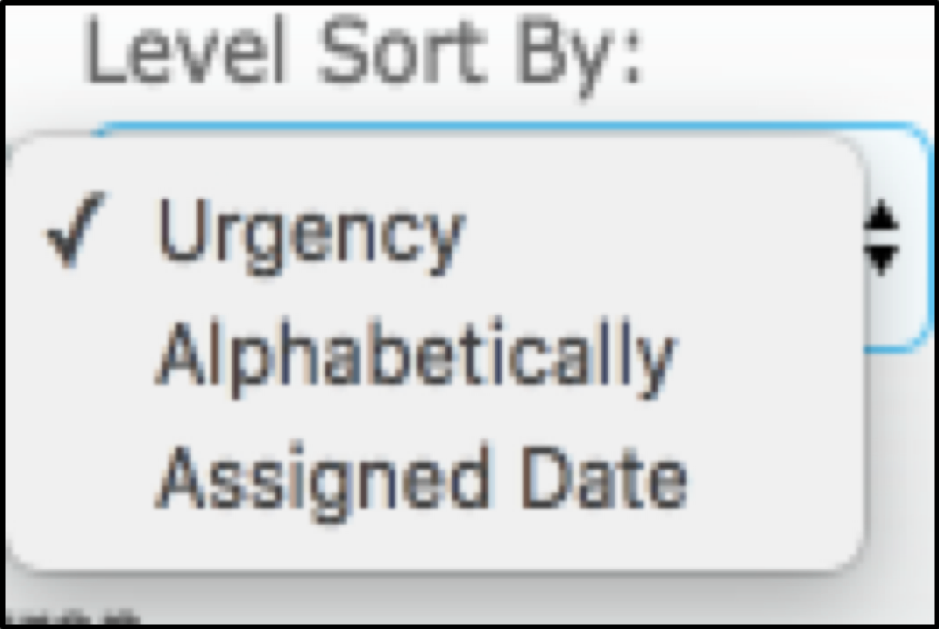
Re-order the data using the pre-set options.
Urgency: Based on either a Target or a Level's colour status, this will order the targets/levels with the Red colour being first. See "Traffic Light System" below.
Mine First: This will order the targets, that the user is patron for, first in the list of targets.
Alphabetically: The Levels will be ordered in an Alphabetical order with the Level Name closest to beginning with 'A' being displayed at the top.
Creation Date: The Targets will be ordered by their creation date. The Target ID's will start from the lowest ID at the top of the dashboard, with the highest ID at the bottom of the dashboard. The lower the Target ID, the older the creation date is.
Target Field: This will order the Targets by a Target field, that is selected. For example, if a column in the dashboard is displaying the field 'First Name', a User is able to toggle whether this field will be displayed in either an ascending order or descending order, in an alphabetical order.
Assigned Date: The most recent Level assigned in a descending order, will be displayed for each Target.
Filter By
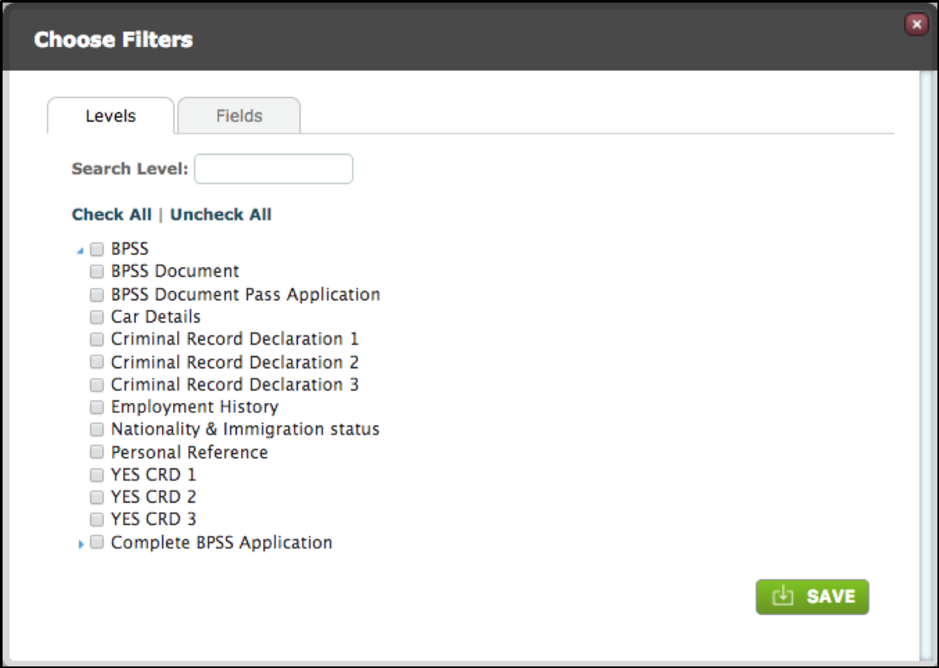
This option allows the Dashboard content to be drilled down even deeper. Click on Filter By and use the Choose Filters modal to select the Levels/Criteria that will be displayed on the Dashboard. This is useful for trimming down Dashboard content and restricting system users or user roles to particular content.
Use the Fields tab to filter further. For example, only a particular language, postcode area or sector may be appropriate for the search.

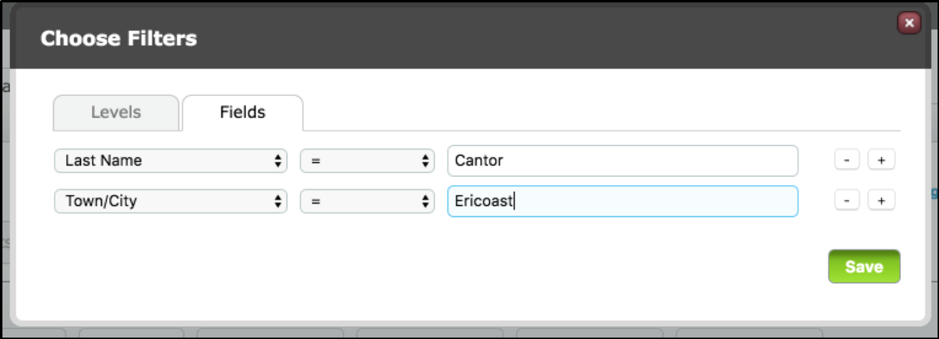
The field filters are AND filters so that the above config will only return targets who have the Last Name "Cantor" AND whose Town/City is "Ericoast".
Saved View
Any dashboard configuration can be saved, so that the combination of sort orders, filters, includes and column arrangements can be captured and re-used quickly. This is beneficial for quickly identifying the next workload or checking on the progress of another team.
Click the Saved View drop down.
Either a new Saved View can be named or a pre-existing view can be selected here.
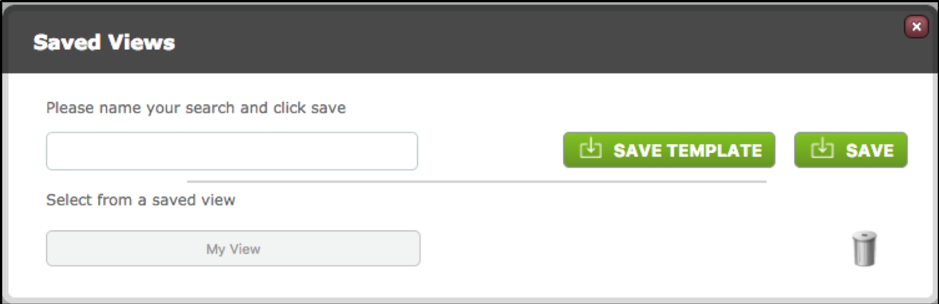
If you save a view using the Save Template option it can be loaded by other users who have access to that Target Group and can be included in a Homepage Template.
Includes: Completed, Due Soon, Overdue, Associated Patron, With New Doc Only, With Unread Messages Only
The Includes are a quick, easy access way of filtering the data already available on the Dashboard. Use the check box to filter by these options.
Completed - will show you all criteria which have been answered and approved, if an approval is required. The status of these criteria will be pass or fail (rejected or expired - where there is no revalidation); their colour is green.
Due Soon - will show you any criteria which have not been answered and have a Due Date of ASAP or a complete by deadline which falls within the time period being viewed on the Dashboard. It will also show criteria which are in revalidation and those with a status of Unable to Proceed where the target has used the "I am unable to complete this" link. Their colour is amber.
Overdue - will show all criteria which have passed their complete by due date and those which have been revalidated and allowed to expire. Their level colour is red. When Urgency is selected in the Target Sort By or Level Sort By filters these will be displayed at the top of the list.
Associated Patron - will show criteria which have been assigned to a specific system user via the Associated Patron option on a connector in the sequencer. When ticked the associated patron will be named under the "Action" heading for all targets which your role allows you to view i.e. you or a colleague may be the patron but you will be able to see tasks assigned to users other than the patron.
With New Doc Only – will show targets which have a new document on the Unassigned tab. When ticked, only targets will appear for the user on the dashboard, that have a new document in this area and which have not been expanded since the document being added.
With Unread Messages ONLY - will show targets that have an unread message. When ticked, only targets will appear that have received a message via the Message Dashboard that have not been read by a System User.
Targets – displays the number of targets that will be displayed for the set filters within the target group.
Re-arrange columns
Click the re-arrange columns icon at the top right of the data table.
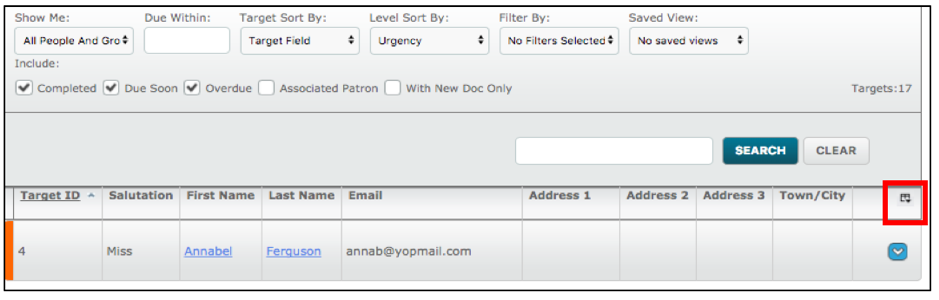
The Choose Fields modal pops up, here the desired fields can be selected to include in the current view. The right-side column also allows filtering on what fields will be available to use the search facility on. The selected fields will be displayed immediately after saving. Scroll down to find the Save button.
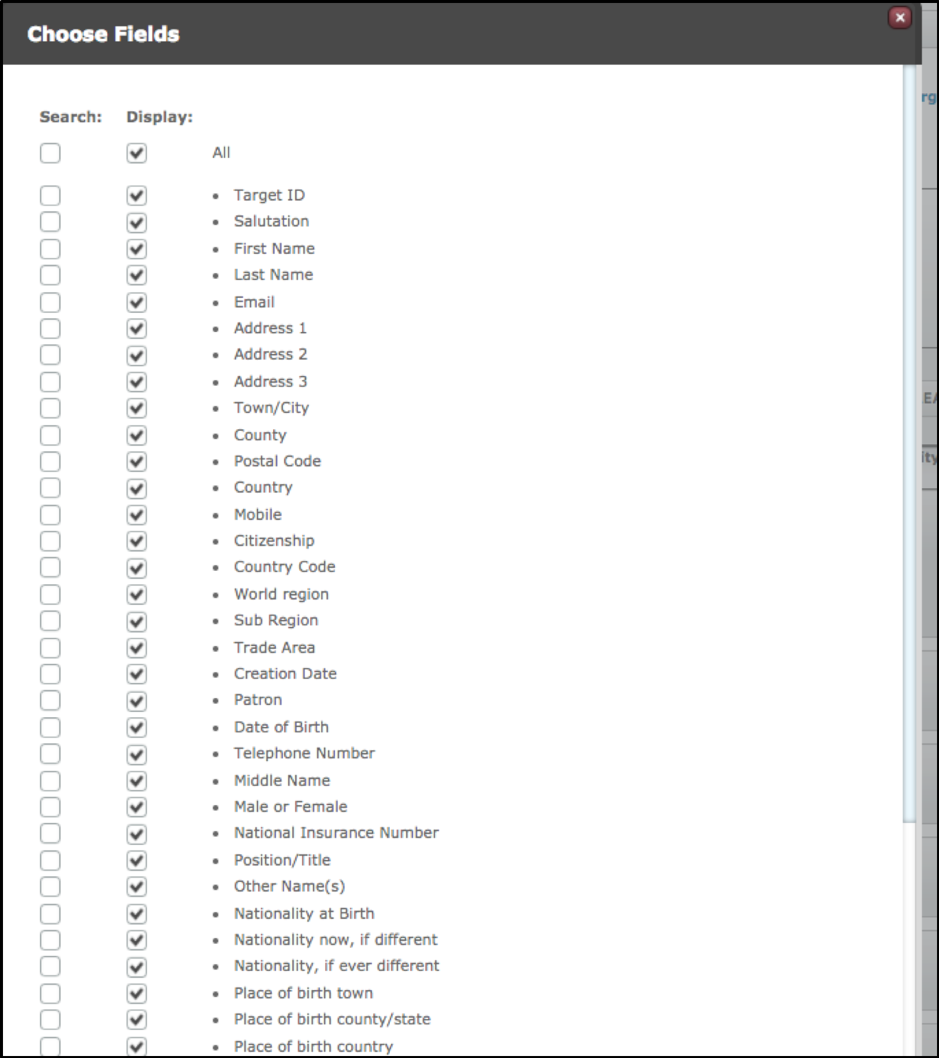
You can move the fields up or down as you require. This is particularly useful when the target group contains a lot of fields but you have for instance a set of 10 which you view most often.
Searching
The search box is very useful for locating a single record, like any search box, type what you are looking for and press enter or click Search. The results will be displayed in the main data table.
The search box will only return results of records being viewed at the time of searching. If you do not get the expected search result check your Filter By setting and any limitations set in the Search column of the Choose Fields modal.

Traffic Light system
autologyx uses a simple traffic light system to mark the state of a target.
The Dashboard has a traffic light system which alerts the System User to any Criteria which have become overdue for completion or renewal. Both targets and levels use the traffic light system, so a completed criteria (green) may be within an incomplete level (amber or red).
Red -Targets/Levels/Criteria that are overdue or expired
Amber -Targets/Levels/Criteria that are within their due date or within revalidation
Green - Targets/Levels/Criteria that are completed
There are some Criteria that have no date - either because they don't expire (they are just a "to do" item) or because they are ASAP. In this case they show amber unless they are completed when they would show green (but would only then display if the Target has other Criteria which are outstanding).
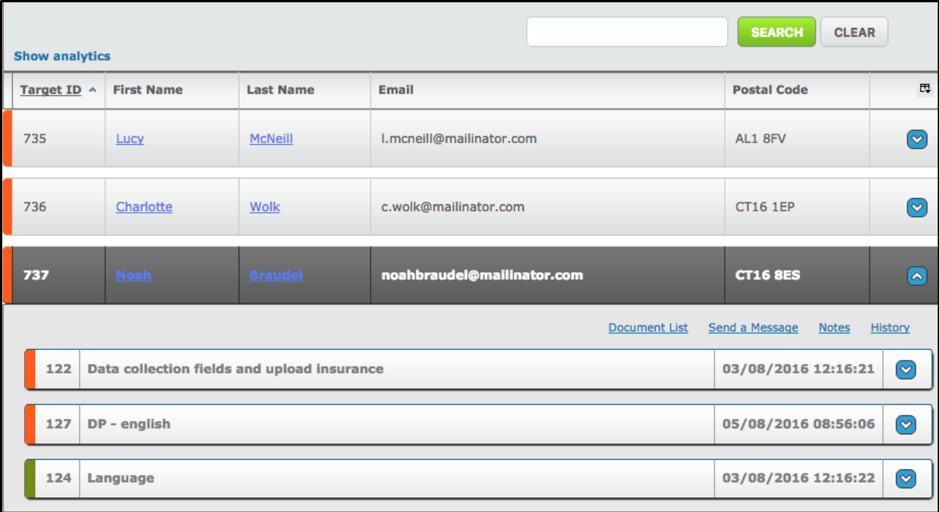
Dashboard Messages
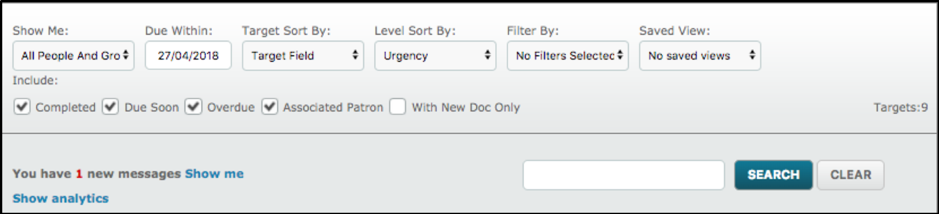
If a message has been sent from a target user via a criteria in their portal, an alert will pop up on the Dashboard with a click-through link, ‘Show me’, that will preview the message and then clicking again will navigate straight to the message within the associated criteria on the Dashboard.
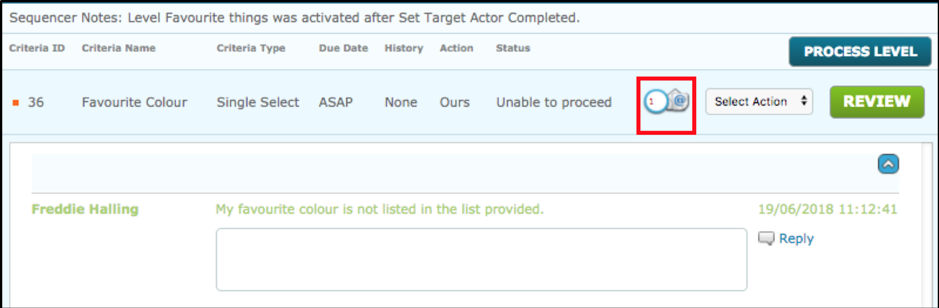
On any criteria, a user can select the mail option icon which will load any messages that have been saved to that criteria. In this example, a target has selected they are unable to complete the criteria and so the User is able to view their reason here.
Comments
0 comments
Please sign in to leave a comment.